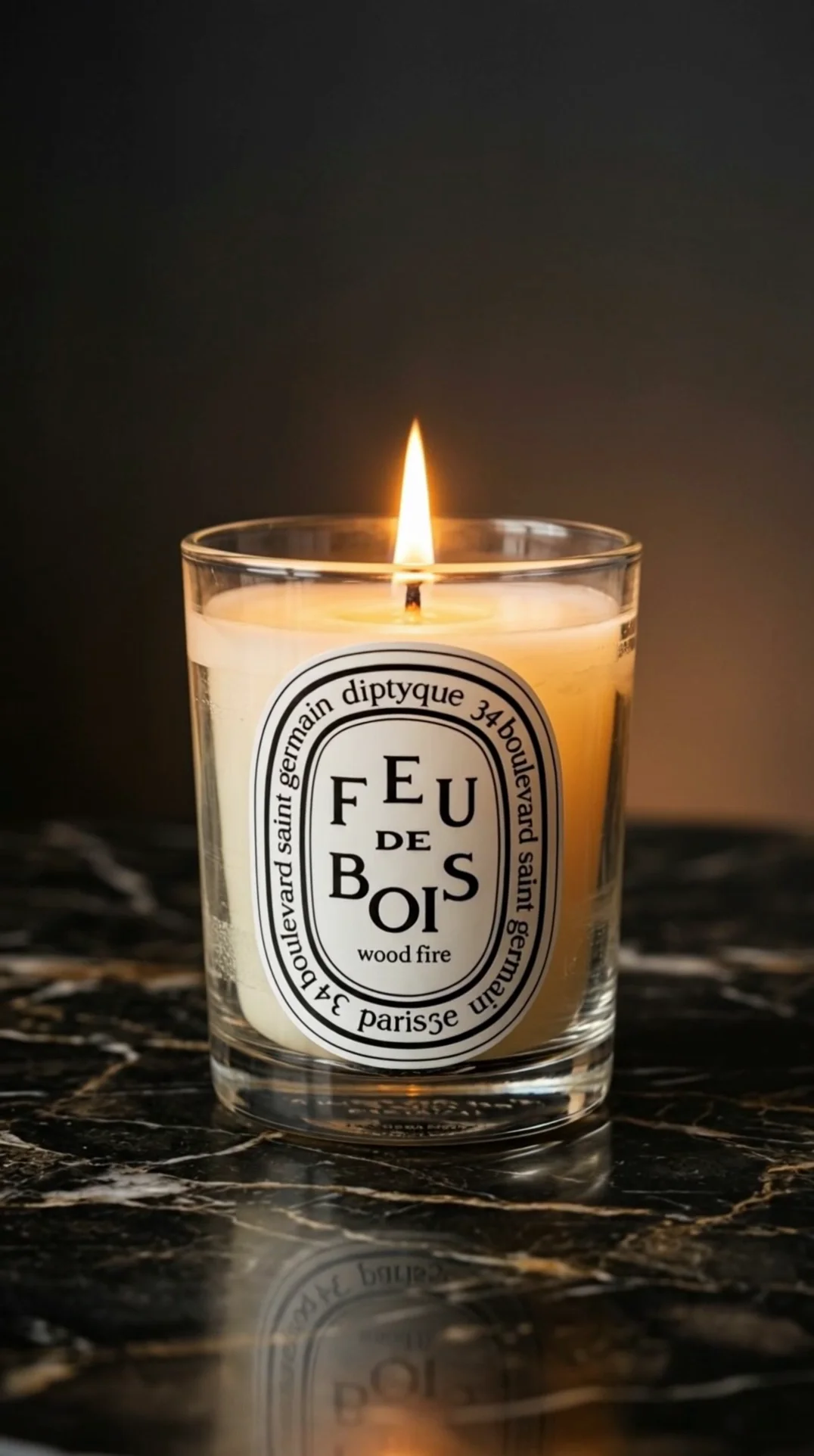
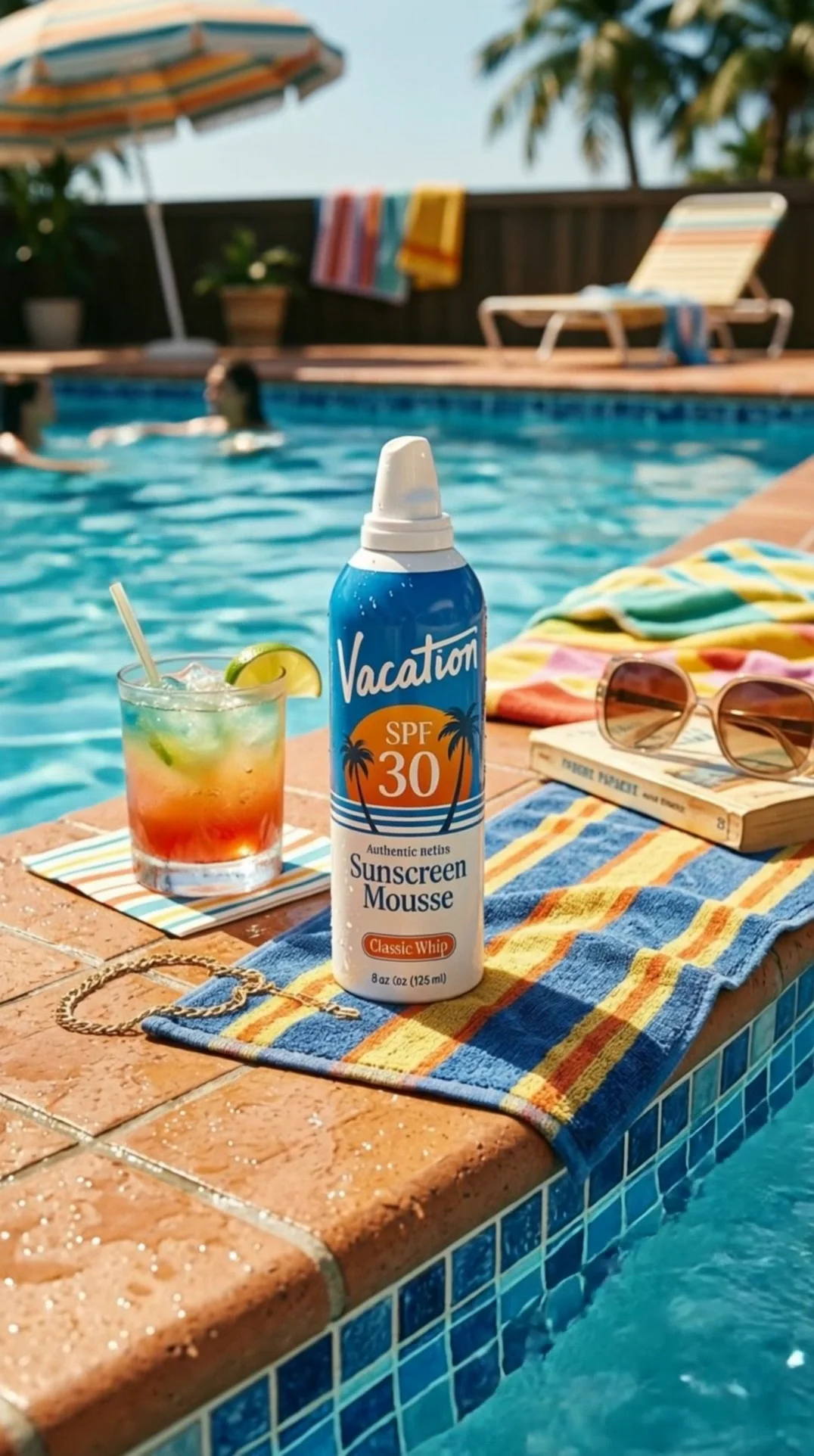
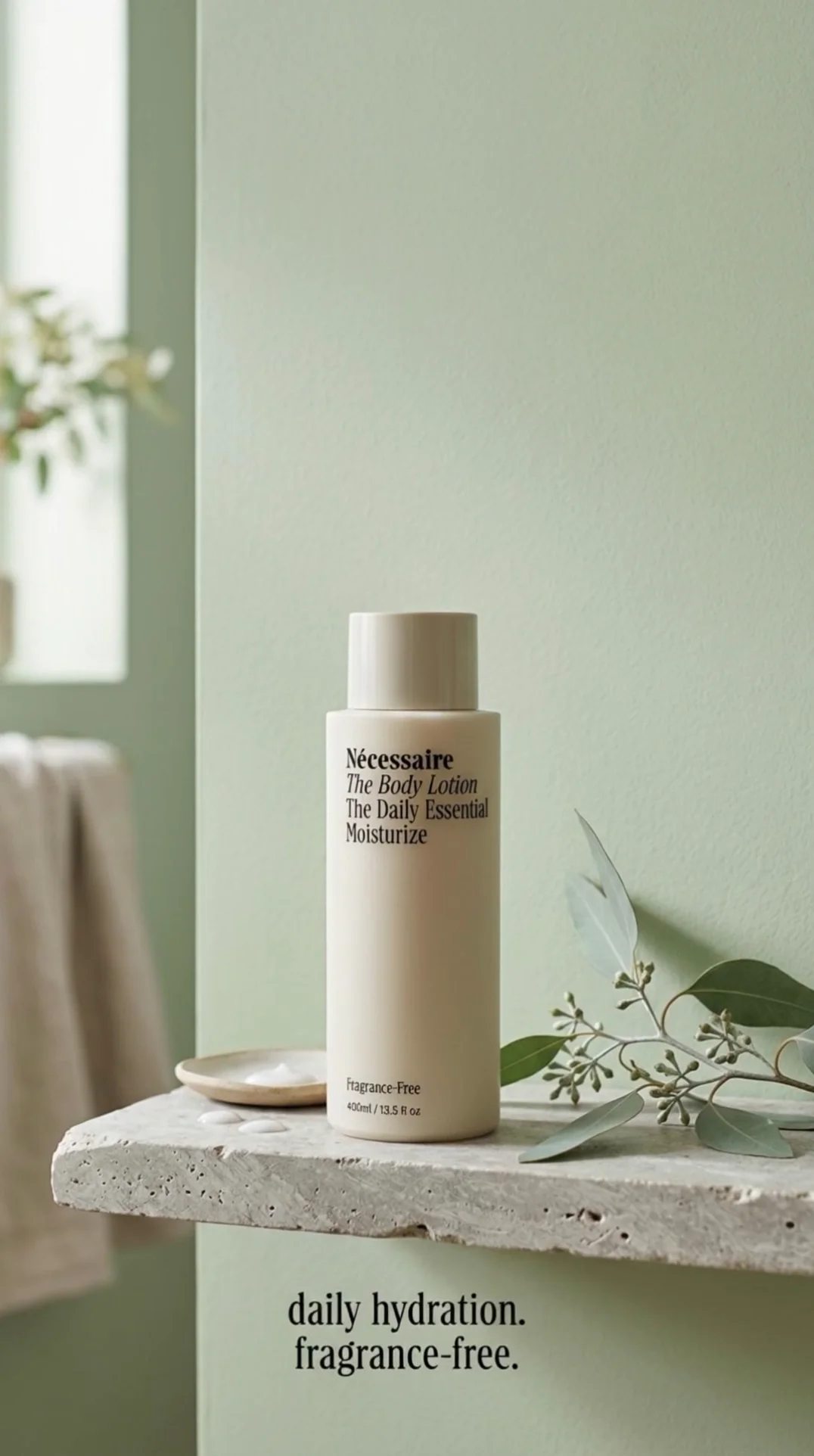
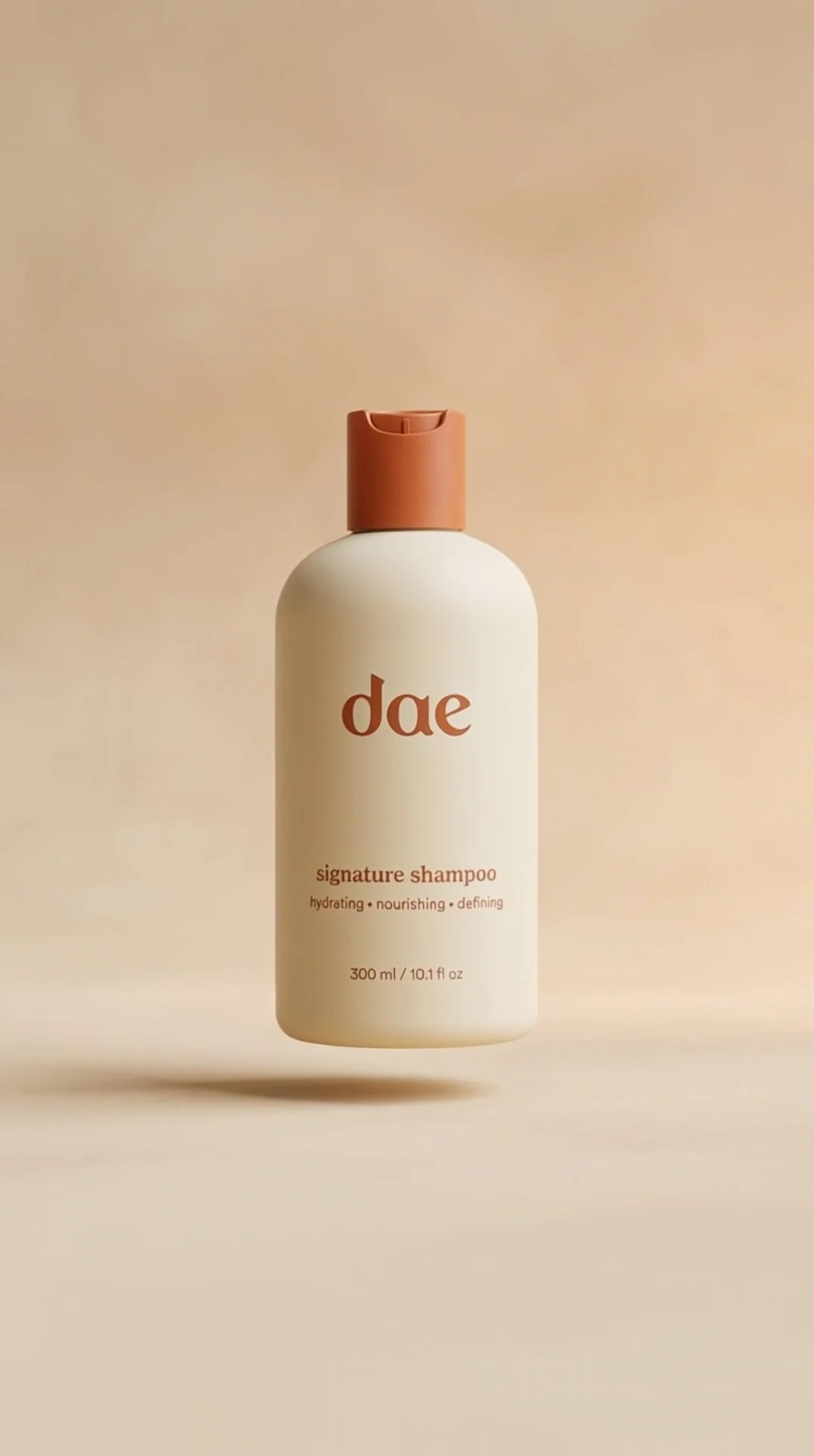
The 1080p mode of Kling Video 3.0 Omni — also called Kling O3 Pro. Same model as the 720p Standard mode, run for output quality: full-resolution finishing, custom element support, and 3 to 15 seconds of reference-guided video with native audio.
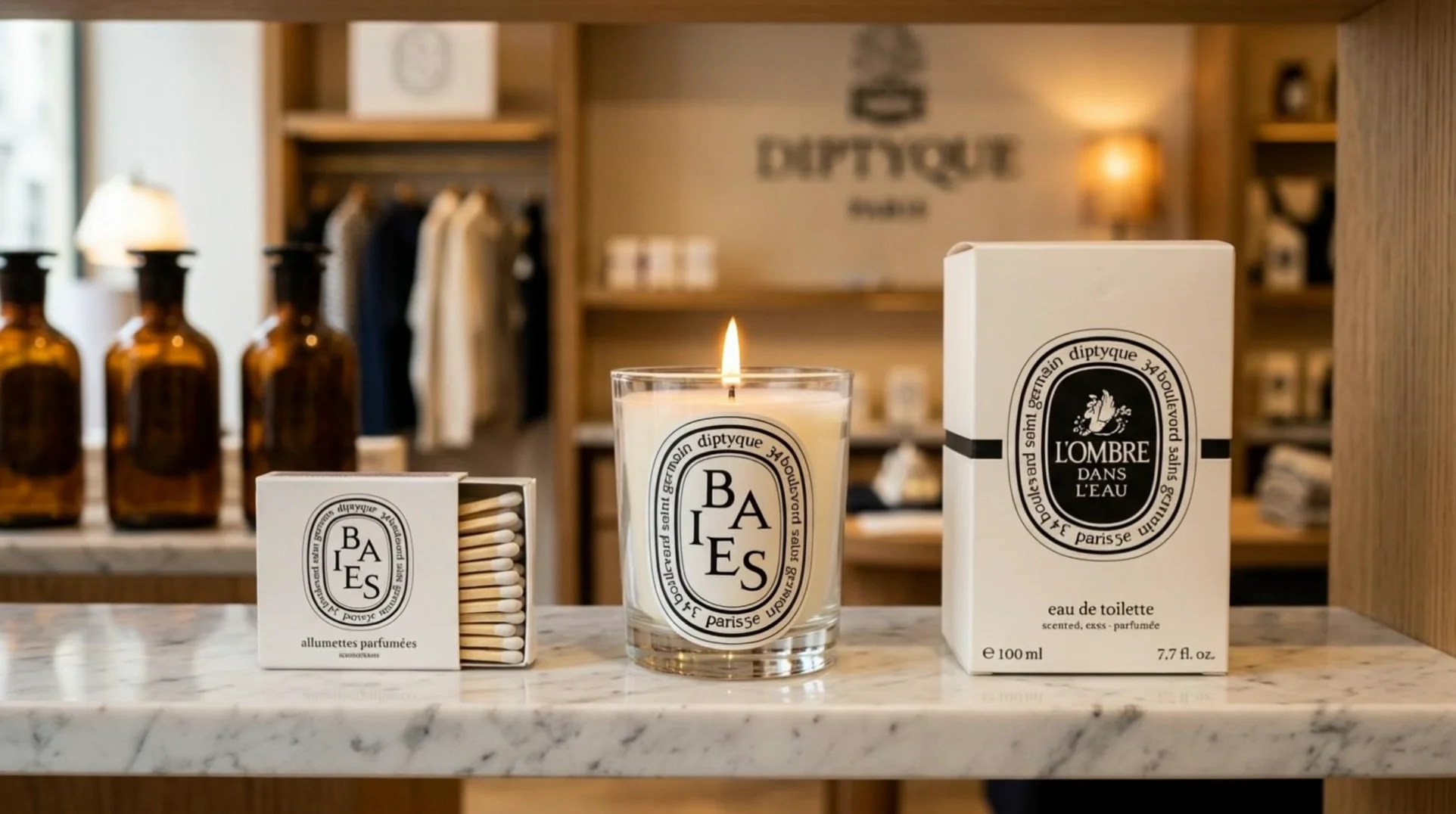
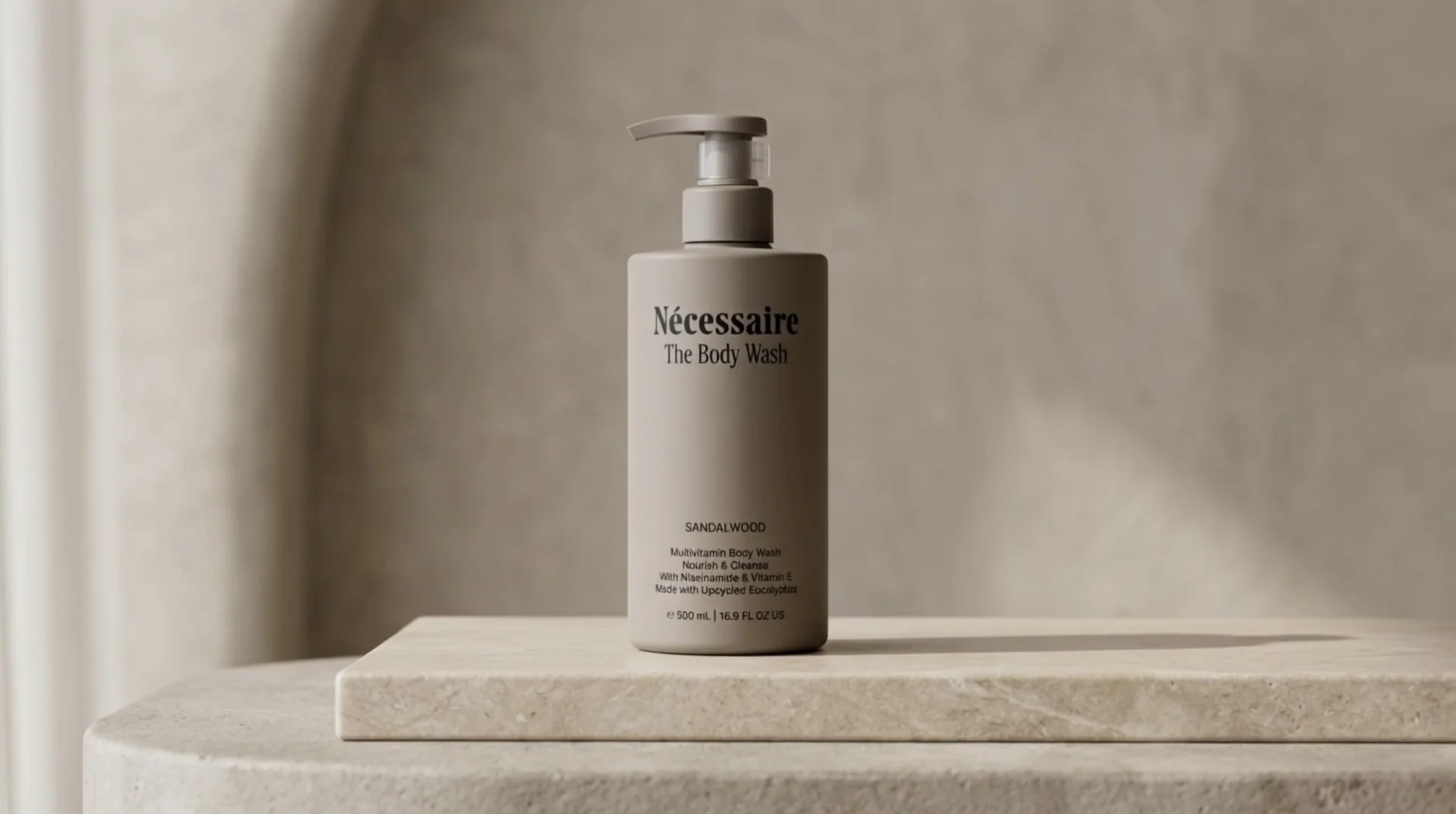
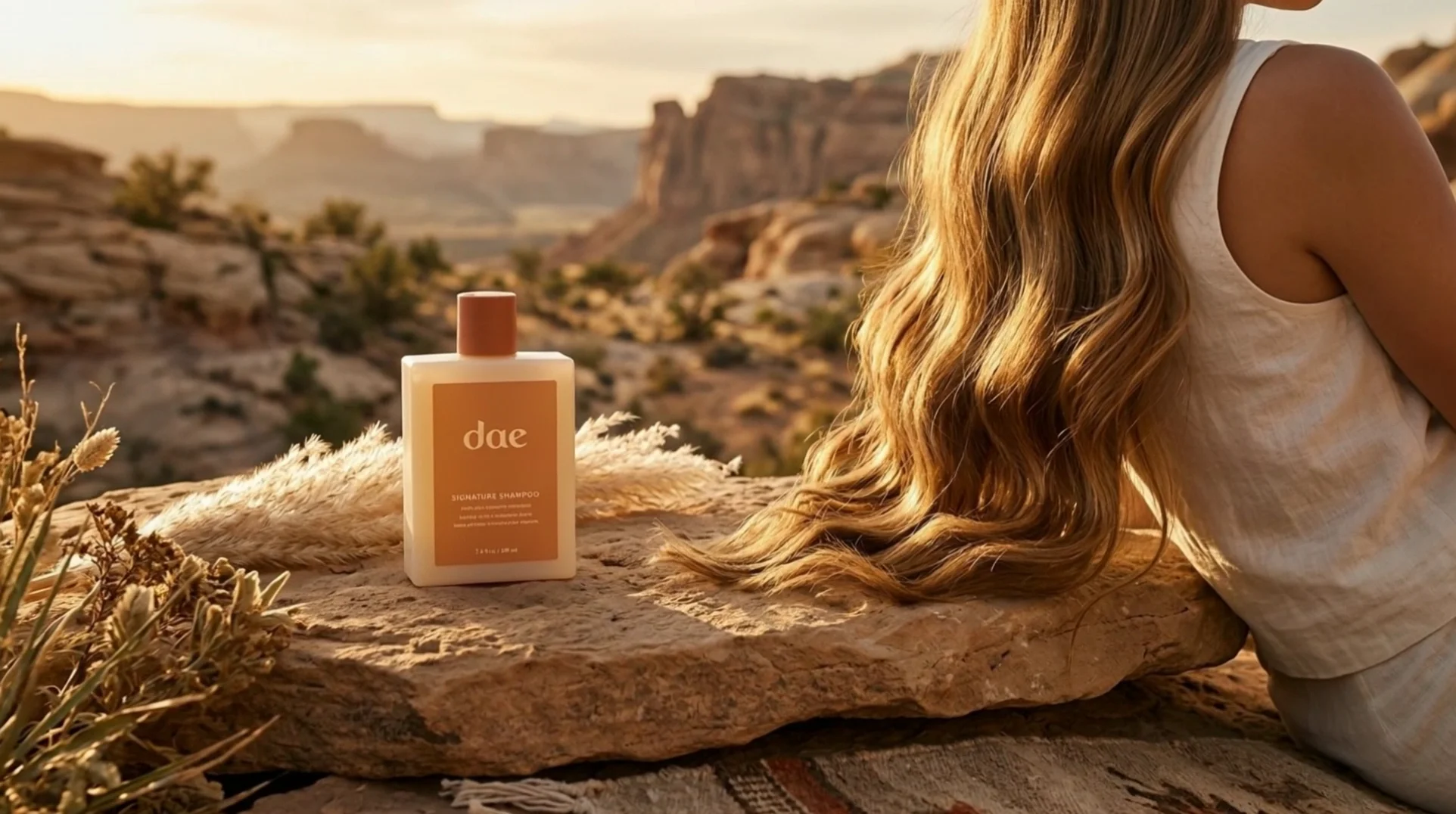
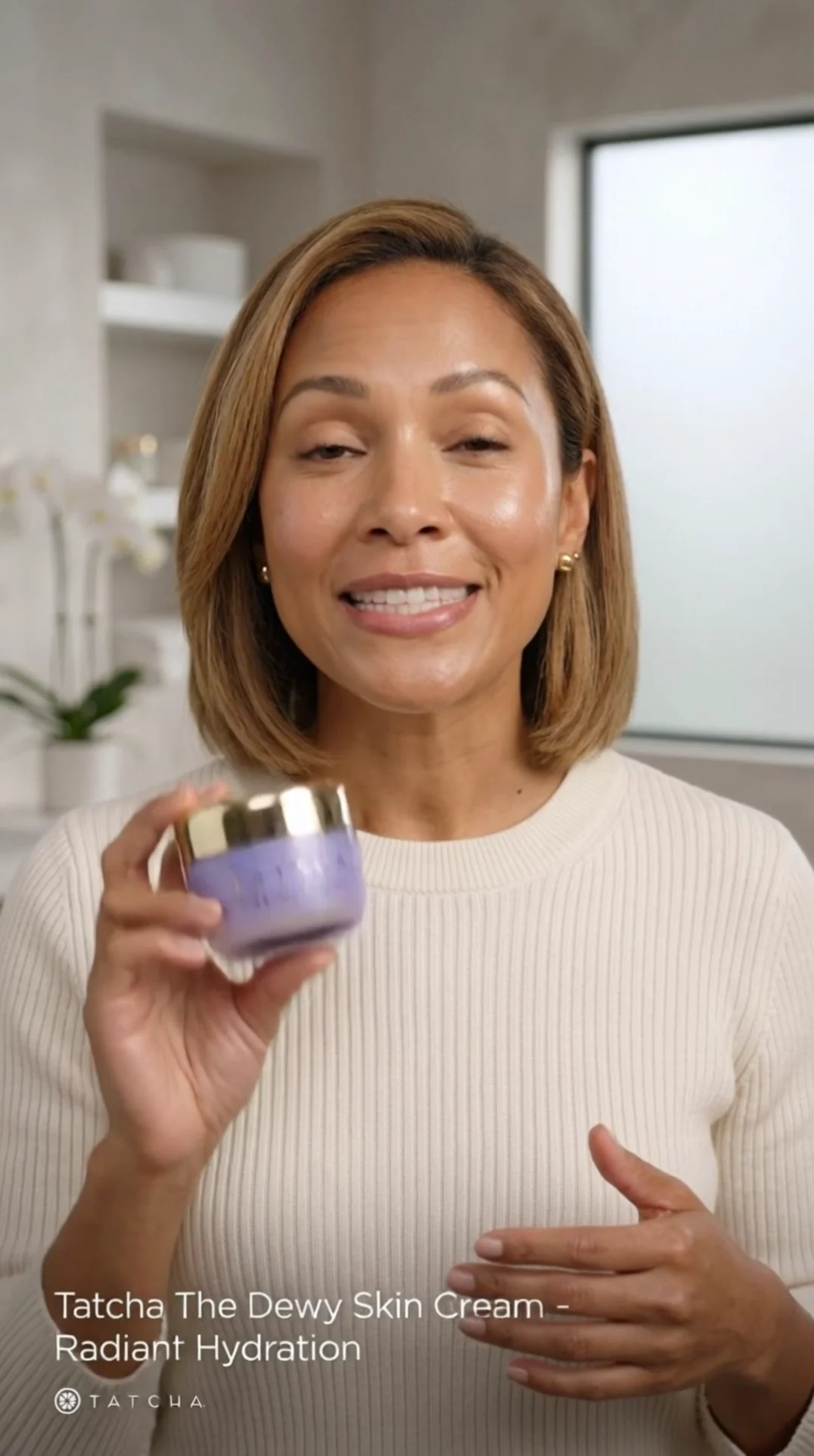
Final cuts rendered at 1080p — spokesperson spots, product hero shots, and multi-shot spots that shipped to paid placement.
Lock your idea down on the Standard mode, then bring it here for the finish. Three steps.
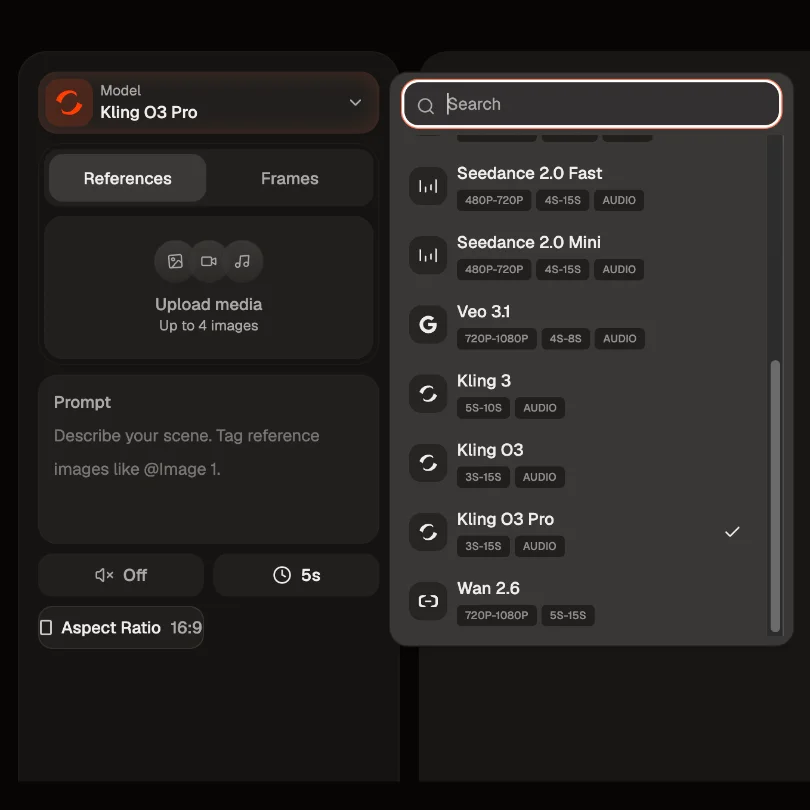
Select Kling Video 3.0 Omni (Pro) once you know what you want. It renders at 1080p and adds custom element support, which the 720p Standard mode does not have.
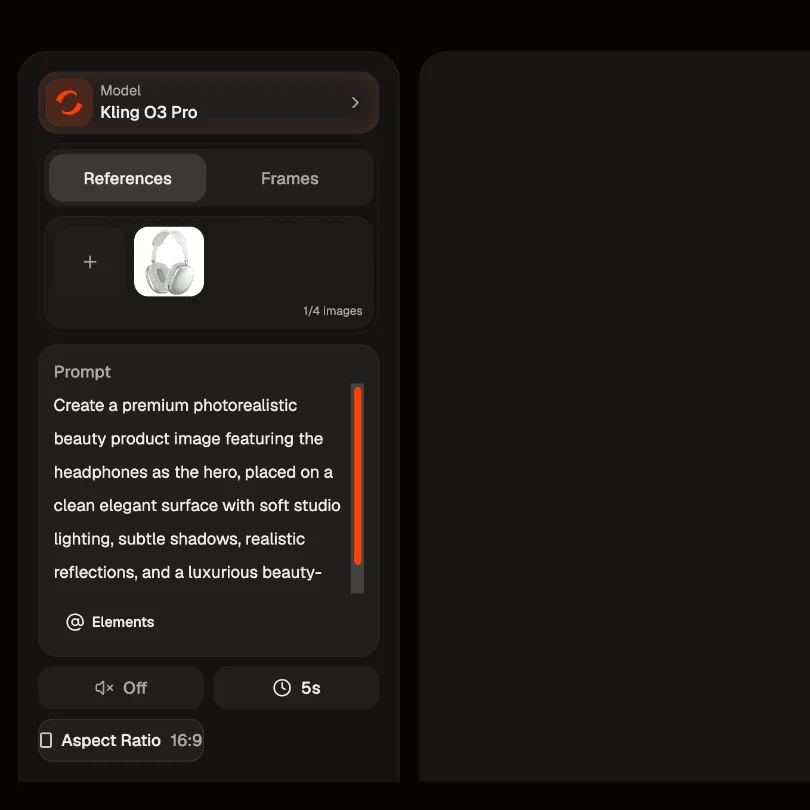
Carry over the prompt you settled on while drafting, along with your reference images, start frame, or reference video. Point at each one by name — @Image1, @Video1, @Element1.
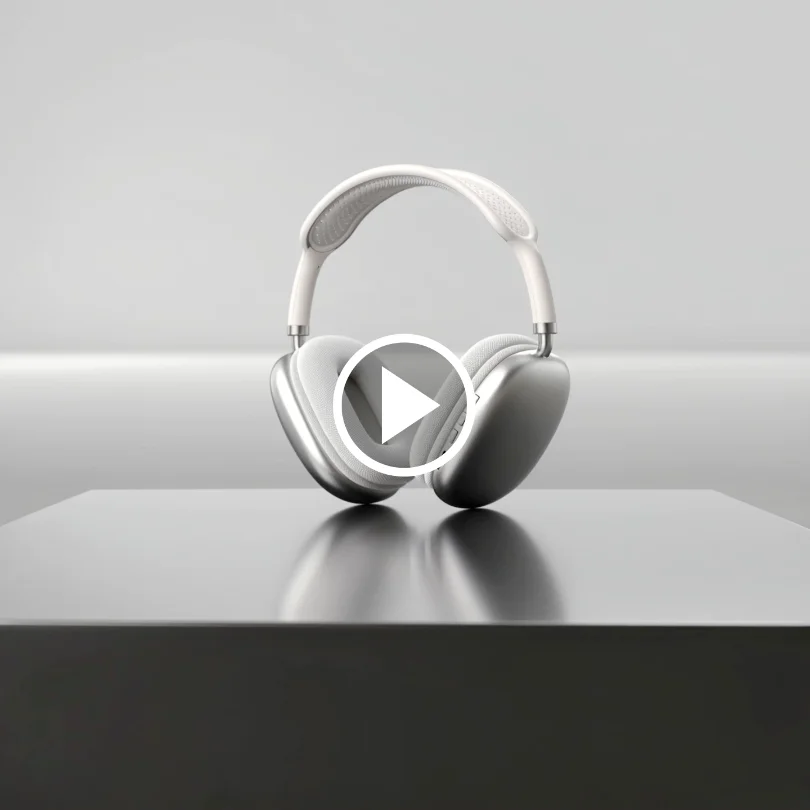
Pro takes noticeably longer than Standard — budget around five minutes for a 5-second job rather than a minute and a half. Run it once you're settled, not while you're still exploring.
Pro is a mode of Kling Video 3.0 Omni, not a separate model. What it changes is the output: 1080p instead of 720p, plus custom elements. Everything the Omni model does with references, editing, and native audio is here too — rendered at the resolution you'd actually ship.
Kling Video 3.0 Omni runs at 720p in Standard mode and 1080p in Pro. That's the split. 1080p is the ceiling for this model — there is no 4K video tier on Omni, so generate at 1080p when the cut is going to paid placement rather than upscaling a 720p draft afterwards.
Pro accepts custom elements — your own recurring assets, tagged as @Element1 and dropped into a scene by name. Standard mode doesn't expose them. If your spot depends on a specific mascot, pack shot, or logo treatment showing up on cue, that's a reason to render here.
Feed it text, a start image with an optional end frame, or up to 7 reference images — 4 if you're also supplying a reference video, which runs 3 to 10 seconds and up to 200MB. Film one clip of your spokesperson and the model draws on their look and voice characteristics for the shots you build around them.
Storyboard the cut shot by shot — duration, shot size, perspective, camera move, and what happens in each. Turn on native audio and dialogue, music, and effects arrive with the video. Note that audio generation and reference-video input can't run in the same pass, so pick one per generation.
Work that's past the exploration stage and needs to hold up at full resolution.
Film one short clip with your spokesperson, then cast them into new scenes at 1080p. Their look and voice characteristics carry across the set, with their participation rather than around it.
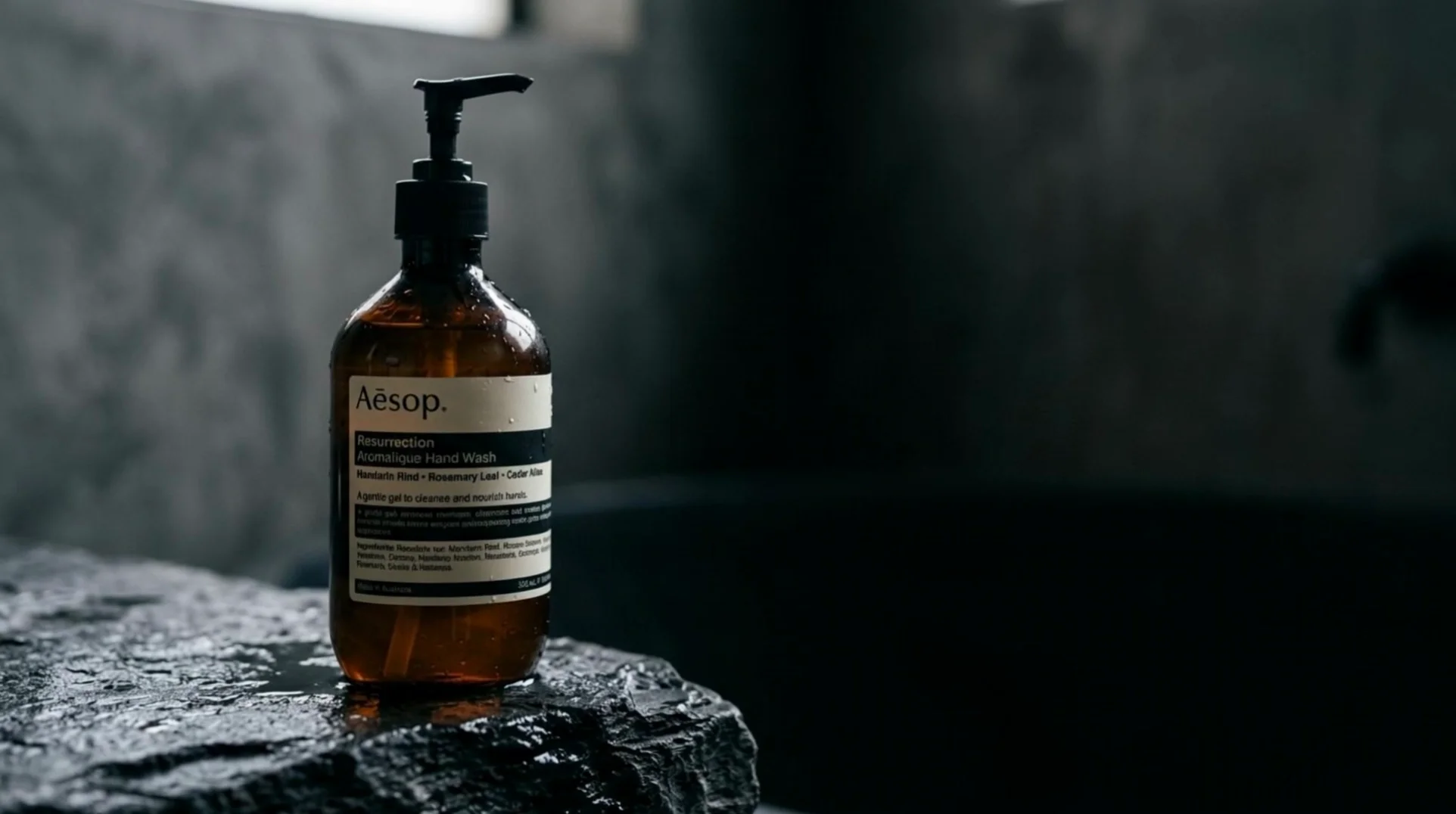
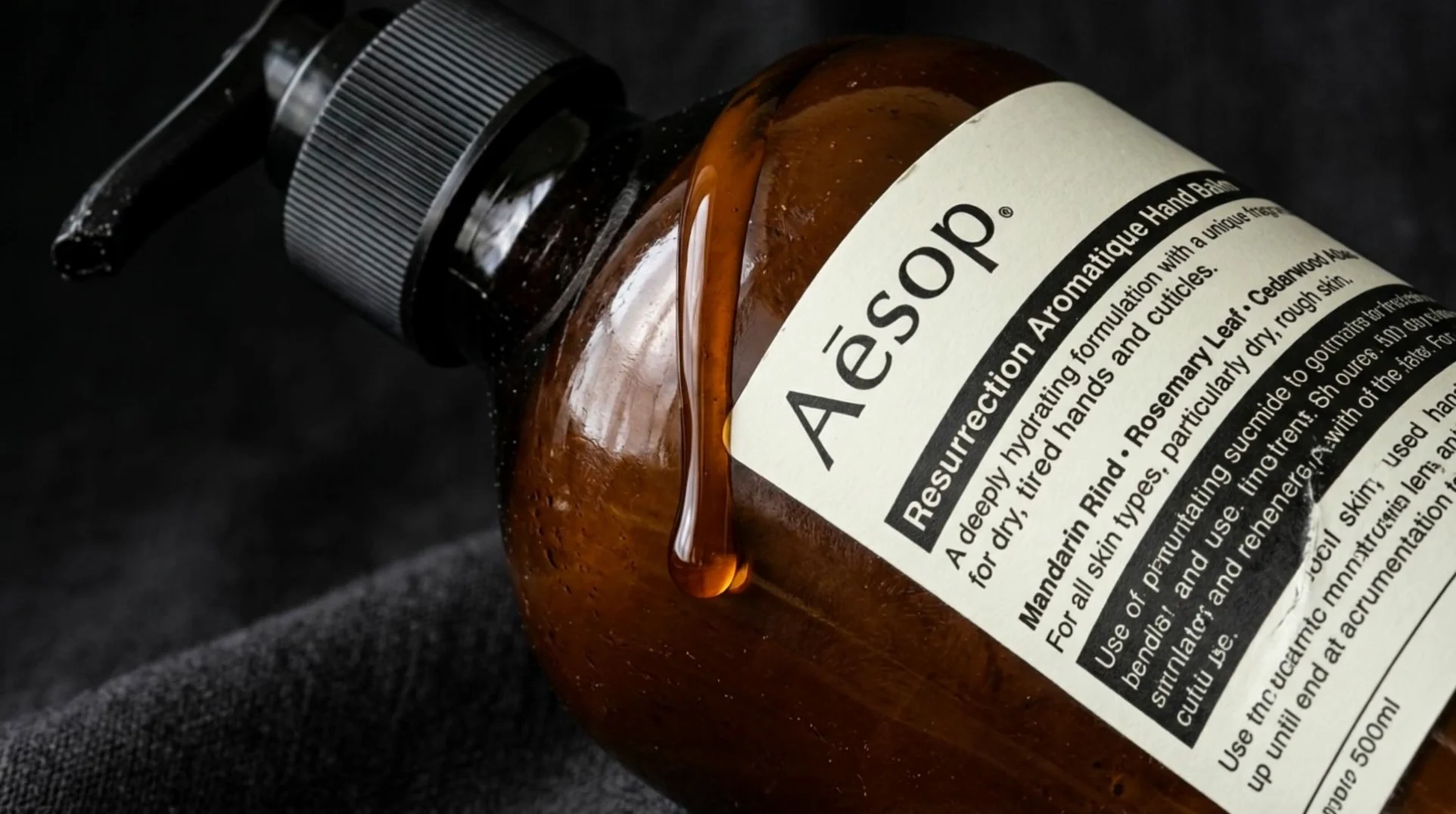
Animate a still of the actual product with start and end frame conditioning. Render at 1080p so the label, packaging, and finish survive the trip to a paid feed.
Hook, demo, CTA — up to 15 seconds of storyboarded shots in one generation, no stitching, at the resolution you're shipping.
One model generates and edits. Change an element in an ad that's already performing — add, remove, replace, or restyle — instead of regenerating the whole spot from scratch.
Render the same idea at 16:9 for YouTube and display, or 1:1 for feed — all from a single prompt.
It's the 1080p mode of Kling Video 3.0 Omni, Kuaishou's unified video model — the one that generates, takes references, and edits in a single system. This mode is widely listed as Kling O3 Pro, which is where the name comes from; Kuaishou itself markets the model as Video 3.0 Omni and treats Pro as a mode flag, not a separate product. The Kling 3.0 family launched February 5, 2026, first to Ultra subscribers and then publicly.
Same model, two modes. Standard renders 720p; Pro renders 1080p and adds custom element support. Pro also costs more per second — roughly a third more than Standard at the same audio setting — and takes about three times as long. Nothing else about the model changes between them.
No, it's slower — about three times slower. A 5-second job takes roughly five minutes on Pro versus a minute and a half on Standard. That's the trade you're making for 1080p. Our honest advice: draft on Standard, finish on Pro.
No. Kling Video 3.0 Omni caps at 1080p, and that's what Pro mode delivers. You may see 4K attached to the Kling 3.0 launch elsewhere — Kuaishou's own announcement attributes 2K and 4K to Image 3.0, not to the video models. If a page tells you this model outputs 4K video, it's wrong.
3 to 15 seconds, with 5 seconds as the default. A single generation can carry several shots, so a full hook-demo-CTA structure fits inside one render without an edit pass. Anything past 15 seconds means chaining generations.
Text, a start image with an optional end image, up to 7 reference images, and a reference video of 3 to 10 seconds at 200MB or less. If you supply a reference video, the image reference cap drops from 7 to 4. Aspect ratios are 16:9 and 1:1.
Yes — there's a toggle for it, and dialogue, music, and sound effects render alongside the video. English and Chinese are generated natively; other languages are auto-translated rather than generated natively, so check the delivery before you localise on it. One constraint worth knowing: audio generation and reference-video input are mutually exclusive, so a single pass gives you one or the other.
That's what HeyOz is built for. Pick the model, bring your references, and every render comes out on-brand and sized for Meta, TikTok, and the rest. You can start for free — see our pricing page for what each plan includes.
Pick the right engine for the job — all in one place.
Anyone can give you Kling Video 3.0 Omni (Pro). Only HeyOz turns it into your ad.
HeyOz reads your brand and keeps every asset on-color, on-voice, on-message.
Seedance, Veo, Kling, GPT Image, and more — no juggling subscriptions.
Sized and formatted for Meta and TikTok, straight out of the box.
Not just a model — templates, avatars, and an agent that does it all.
Start Now. No agency, no brief, no blank screen.